
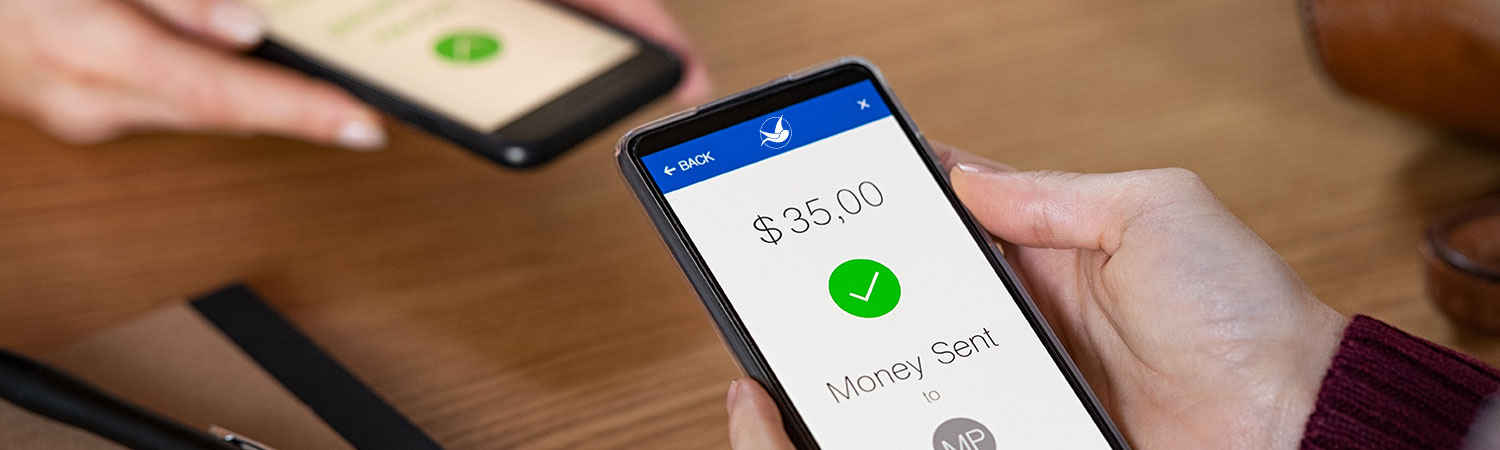
Move money between your LCCU account
At LCCU, we know transferring money is about caring for your family, supporting loved ones, and staying connected. LatinoConnect gives you simple tools to send and receive funds—locally or internationally—with the safety and trust you expect from your credit union.
Move money between your LCCU accounts
Transfer money between your checking, savings, or loan accounts anytime.
- Login to LatinoConnect online or mobile app.
- Once logged in, click on Make a Transfer o Transfer (from your mobile phone).
- Under New Transfers, select the LCCU account you're transferring funds from.
- Then, choose the LCCU account you're moving funds to.
- Input the amount you wish to transfer.
- Select a timeframe for your transfer. You can choose to have it completed immediately or schedule it for a later date.
- When ready, click Review.
- If everything looks correct, click Confirm to submit your transfer.
- You'll see a confirmation screen.
Member-to-Member Transfers
Perfect for sending money to family or other LCCU members.
- Login to LatinoConnect online or mobile app.
- Once logged in, tap on Transfer.
- Select Add a Member-to-Member Account.
- From the Member-to-Member Accounts screen, click on Create Code.
- Click on the Accept & Continue button after reading the Terms and Conditions.
- Proceed to select the Account where you would like to receive your funds.
- Then create your Member to Member Code, by following the system requirements listed below the text field.
- When ready, click on Create Code.
- Once you have successfully created your code, you can provide it to other members for an easy transfer to your account.
Connect with another member:
- On LatinoConnect, tap on Transfer.
- Select Add a Member-to-Member Account.
- From the Member-to-Member Accounts screen, click on Add Account.
- Choose between adding the other Member’s Account Number or their Member Code.
- If you have the member’s account number, simply add their Last Name, Account Number, assign a Nickname, and choose the Account Type.
- If you have the other member’s M2M code, simply enter the code they provided you with and assign the Account Nickname.
- Click Add Account when ready.
Make a transfer to another member:
- On LatinoConnect, tap on Transfer.
- Then choose Transfer Between Accounts.
- Select the account from which you wish to send funds.
- Then select the member account that you want to make a transfer to.
- Proceed to specify the dollar amount, and a time frame for your transfer.
- Click the button below to review your details and then click on the Confirm button to finalize your transfer.
- You will see a confirmation screen and the other member will receive your funds transfer.
(P2P) (Person-to-Person) Payments
Send money to anyone using their email or phone number. Ideal for splitting bills or helping friends.
- Login to LatinoConnect online or mobile app.
- Once logged in, click on Transfer
- Select Pay a Person
- Choose the account you wish to transfer from
- Click Add New Contact
- Fill in the new contact's name, email address or phone number
- Click Add Contact
- Click Close after contact has been created successfully
How to Make a P2P:
- Login to LatinoConnect online or mobile app.
- Once logged in, click on Transfer
- Select Pay a Person
- Select a person from your saved contact
- Enter the amount to be sent
- Select the date for the transfer
- Toggle the Auto Pay On only for recurring transfers and duration (Optional)
- Click Continue
- Add a personal message
- Establish a question and answer to provide to the recipient
- Click Continue
- Check the box to be notified when payment is delivered
- Check the Acknowledgement and Term and Conditions boxes
- Click Submit
- Click Close after receiving the confirmation of Success
IMPORTANT NOTE: Please note that P2P works in 2 ways: via ACH and Debit Card. The ONLY way money will be instantly available is if both (sender & recipient) select a debit card as the method to receive the funds.
Transfers to Other Financial Institutions
Link accounts from other financial institutions to simplify fund transfers to your other accounts or non LCCU members.
- Login to LatinoConnect online or mobile app.
- Once logged in, tap on Transfer.
- On the transfer page, choose Add an External Account.
- From the External Account screen, select a financial institution from the options.
- Enter the Routing Number and Account Number.
- Optionally, label the account with a Nickname to help you identify it.
- Next, select the Account Type, choose between Checking, Savings, or Loan.
- Then click Connect.
- You will see confirmation that your request to add an external account has been accepted.
- In up to 3 days, two small deposits will appear in your external account. You will need those two deposit amounts to verify the external account on LatinoConnect.
- When you’re ready, return to LatinoConnect and click on Transfer.
- Click Manage External Account and select the external account you recently added.
- Proceed to Verify Account by imputing the Deposit Amounts from the two deposits.
- Click Verify to complete the process.
- If the two amounts are confirmed, your external account will be added to LatinoConnect.
Move money between external accounts:
- From LatinoConnect, click on Transfer.
- Then choose Transfer Between Accounts.
- From the drop-down menu choose the external account from or to which you are making a funds transfer to.
- Input the amount.
- Select a timeframe for your transfer. You can choose to have it completed immediately or schedule it for a later date.
- When ready, click Review.
- If everything looks correct, click Confirm to submit your transfer.
- You’ll see a confirmation screen that your transfer with an external account is being processed. Note: The draft from your external financial institution might take up to several days to post.
Wire Transfers (Domestic & International)
Easily send or receive wire transfers from other financial institutions straight to your LCCU account, with the speed, security, and personal service our members trust.
- Provide your LCCU details to the sender.
- Your Financial Institution Information
- Latino Community Credit Union
Transit/Routing number: 053185503
PO Box 14647
Durham, NC 27709 - Your Member Information
- Name (as it appears on your LCCU account)
Your LCCU account information
Your address - Confirm the transaction has been completed with the sender.
When Sending a Wire Transfer
- From LatinoConnect, Select Transfers from the bottom menu.
- On the transfer screen, select One-Time Wire.
- Choose the account you're transferring funds from.
- Enter the beneficiary's external account information and contact information.
- When completed, click Review to confirm that all details are correct.
- A 10-dollar fee will be applied to send a wire.
- Click Submit to send your wire.
Transfers - Frequently Asked Questions (FAQ)
A wire transfer is a faster and safer way to send or receive money directly to or from another financial institution.
To receive a wire transfer, provide the sender with the following information:
Receiving Financial Institution:
Latino Community Credit Union
Routing/Transit Number: 053185503
SWIFT/BIC Code: LCCIUS62
PO Box 14647,
Durham, NC 27709
You must also provide:
- Your full name as it appears on your account
- Your account number
- Your physical address (PO Boxes are not accepted
- Beneficiary notes or Purpose of Wire
- Log in to LatinoConnect (online or mobile app)
- Select your account
- Navigate to account details
- Copy the routing number and your account number
- Note down the credit union’s name and address listed above.
Take advantage of a faster and easier way to send money anywhere in the U.S. or abroad. Domestic wires are transmitted Monday–Friday, 9:00 am – 4:30 pm Eastern Time, excluding holidays. For a wire to be sent the same business day, it must be received by the credit union before the cutoff times below.
To send an international wire transfer, you need:
• ABA/routing number of the receiving bank
• Name, address, and phone number of the receiving bank
• Recipient's bank account number
• Recipient's name and address (as it appears their account)
• Full name and address of the recipient's bank
• Name, address, and account type of the recipient
• Recipient's account number or IBAN (if applicable)
• SWIFT/BIC code of the receiving bank
If you currently reside outside the United States and wish to send an international transfer, you may need to complete an additional form.
For wires to be processed the same business day:
- Domestic wires: received by 4:30 pm Eastern Time
- International wires: received by 2:30 pm Eastern Time
Wire transfers are processed Monday through Friday, except holidays.
• Domestic outgoing wire fee: $10
• International outgoing wire fee: $25
• Recurring wire requests can be submitted online via LatinoConnect
• Funds are disbursed as directed by the sender
• Requesting recurring wires through a branch can expedite multiple transfers to the same destination.
• Log in to LatinoConnect online or mobile app
• Click the three dots in the top-right corner and select Secure Forms
• Search for the International Wire Request Form
• Fill in the required account and beneficiary information
• Submit the form
• A representative will contact you through secure messaging to follow up
Explore our video library to guide you through every step of using LatinoConnect.
View Tutorials
Get Started Today!
Sending or receiving money is quick and easy. You can manage transfers online through LatinoConnect, visit any of our branches, or call our Member Service Center. Choose the option that fits your schedule best.